Creating Links
FWURL offers two ways to create short links: Quick Create for speed and simplicity, and Advanced Create for full control over all features. This guide covers both methods and the basic link creation workflow.
Quick Create vs Advanced Create
Quick Create
Best for: Creating links quickly without additional configuration
Features:
- Minimal form with just the essentials
- Paste URL and go
- Optional custom alias
- Creates link in seconds
When to use:
- Sharing links on social media
- Quick URL shortening needs
- When you don't need advanced features
Advanced Create
Best for: Marketing campaigns, detailed tracking, and advanced features
Features:
- Full access to all FWURL features
- Advanced configuration options
- QR code generation
- UTM parameter builder
- Link scheduling and targeting
- Custom link preview
When to use:
- Marketing campaigns
- Links requiring detailed tracking
- Time-sensitive content
- Geo or device-specific redirects
Using Quick Create
Quick Create is accessible from anywhere in the dashboard via the Create Link button dropdown.
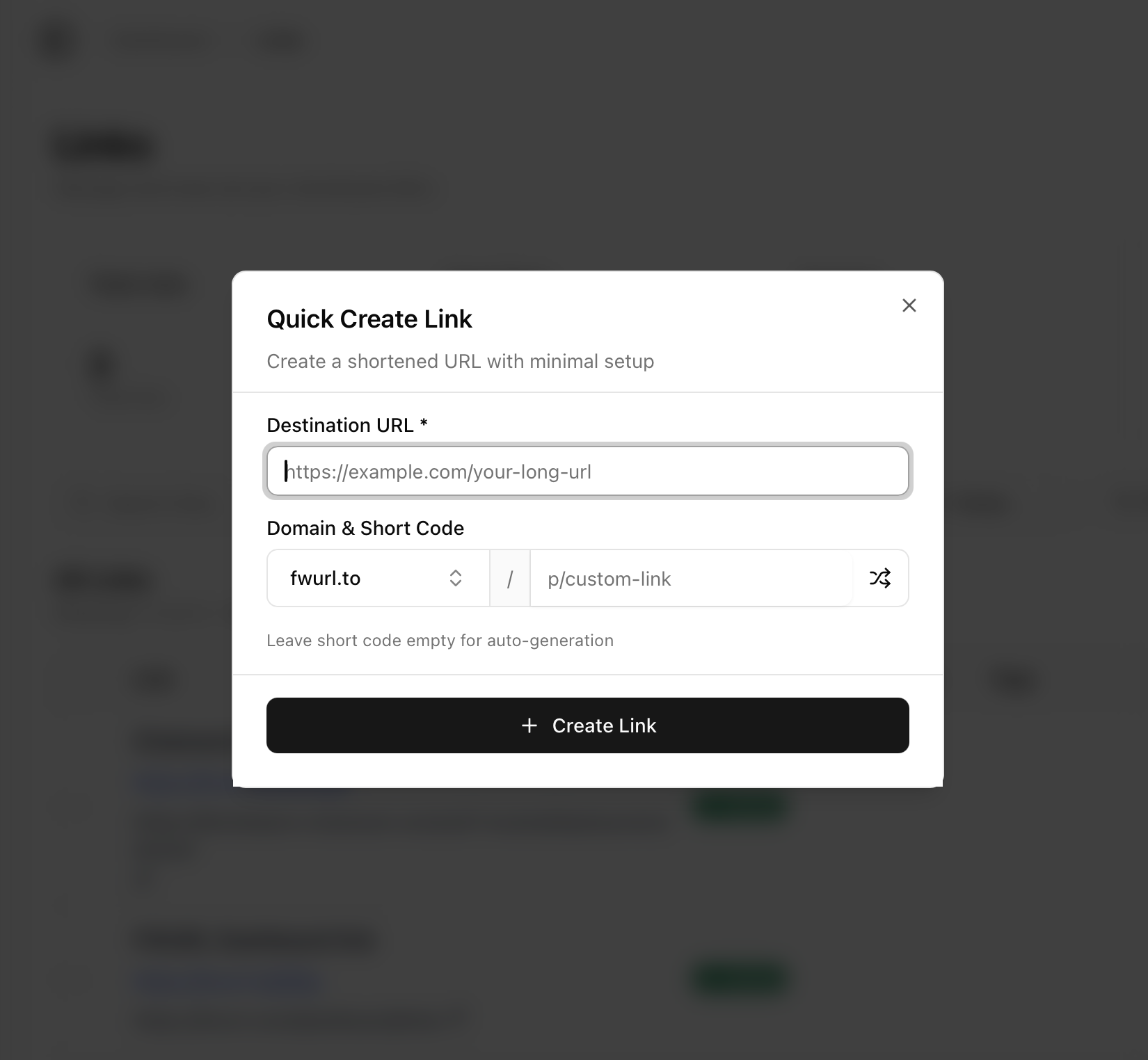
Steps:
- Click Create Link → Quick Create
- Paste your destination URL
- (Optional) Customize the short link alias
- Click Create Link
- Copy and share your new short link!
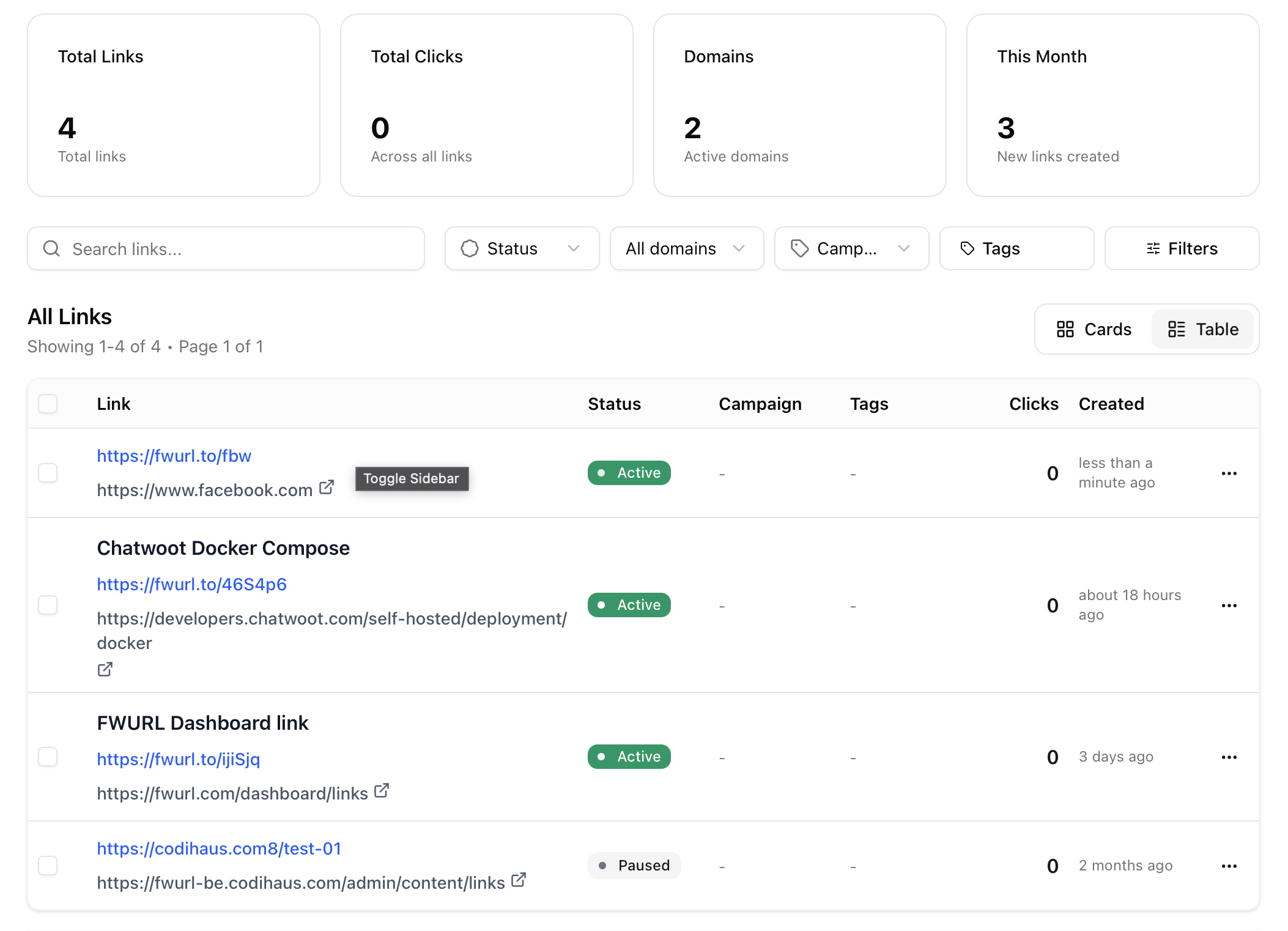
Tip: Quick Create automatically generates a random alias if you don't provide one.
Using Advanced Create
Advanced Create gives you access to all FWURL features in a comprehensive form.
Accessing Advanced Create
- Click Create Link → Advanced Create, or
- Navigate directly to
/dashboard/links/create
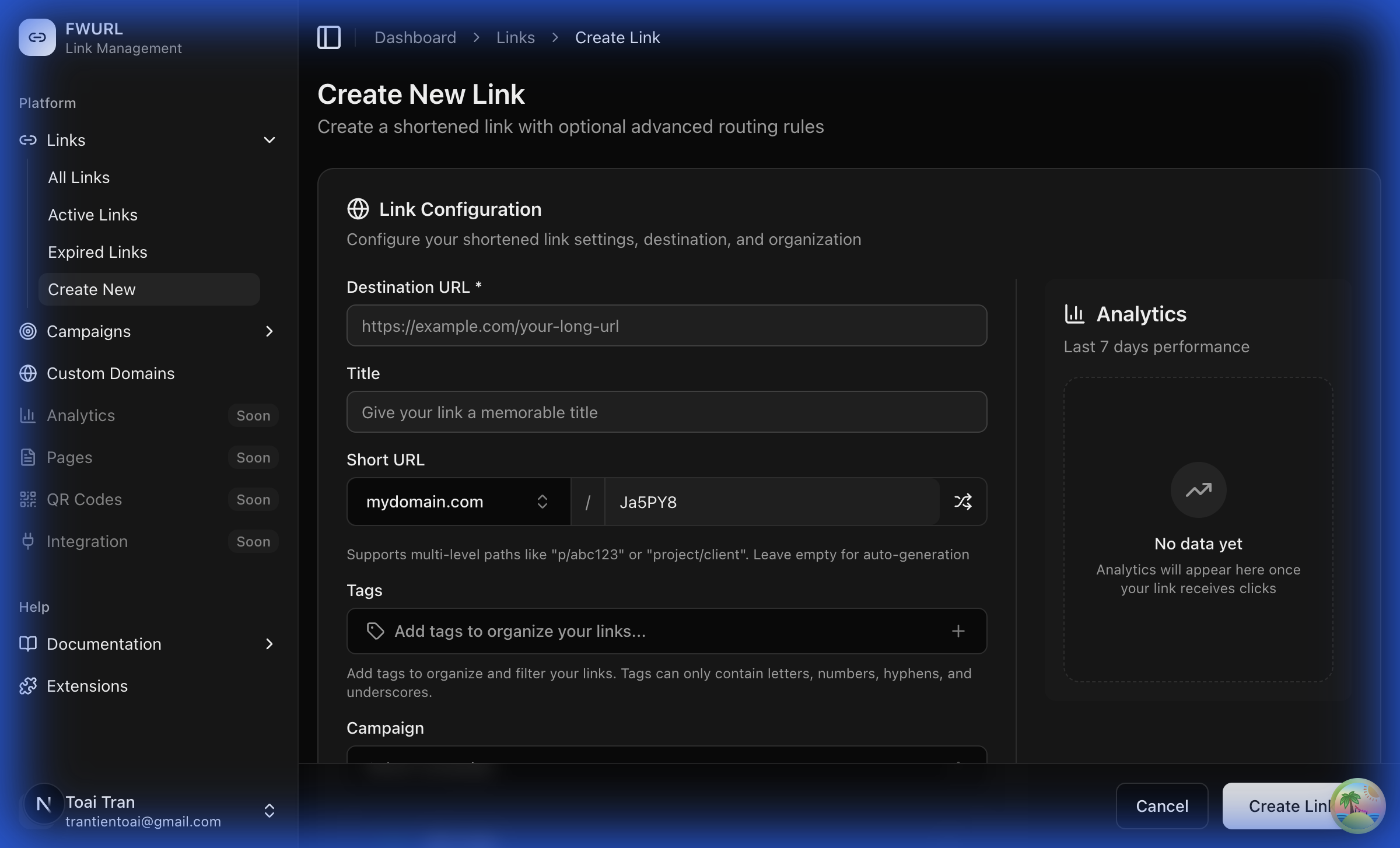
Basic Link Settings
These are the core fields available when creating a link:
1. Destination URL (Required)
The long URL you want to shorten.
Features:
- Automatic title fetching from the destination page
- URL validation
- Support for any valid URL
Best practices:
- Use complete URLs including
https:// - Test the destination URL before shortening
- Ensure the destination is accessible
2. Title
A descriptive name for your link (for internal organization).
Features:
- Auto-populated from destination page title
- Editable for custom naming
- Helps identify links in your dashboard
Best practices:
- Use descriptive titles
- Include campaign or date information
- Keep it concise but meaningful
3. Short URL / Custom Alias
Customize the short link path.
Format: fwurl.com/your-custom-alias
Features:
- Auto-generated if left blank
- Alphanumeric characters, hyphens, and underscores
- Real-time availability checking
- Case-sensitive
Best practices:
- Keep it short and memorable
- Use relevant keywords
- Avoid special characters
- Consider SEO implications
Examples:
fwurl.com/summer-sale-2024fwurl.com/webinar-signupfwurl.com/product-launch
4. Tags
Organize links with tags for easy filtering and management.
Features:
- Multiple tags per link
- Auto-complete from existing tags
- Create new tags on the fly
- Filter dashboard by tags
Best practices:
- Use consistent tag naming
- Create tags for campaigns, channels, or content types
- Don't over-tag (3-5 tags is usually enough)
Example tags:
social-mediaemail-campaignq4-2024product-launch
Learn more about Tags & Organization →
5. Campaign
Group related links into campaigns for better organization and analytics.
Features:
- Select from existing campaigns
- Create new campaigns
- View campaign-level analytics
- Track ROI by campaign
Use cases:
- Product launches
- Seasonal promotions
- Event marketing
- Content series
Advanced Features
The Advanced Create form also provides access to powerful features. Each has its own dedicated documentation page:
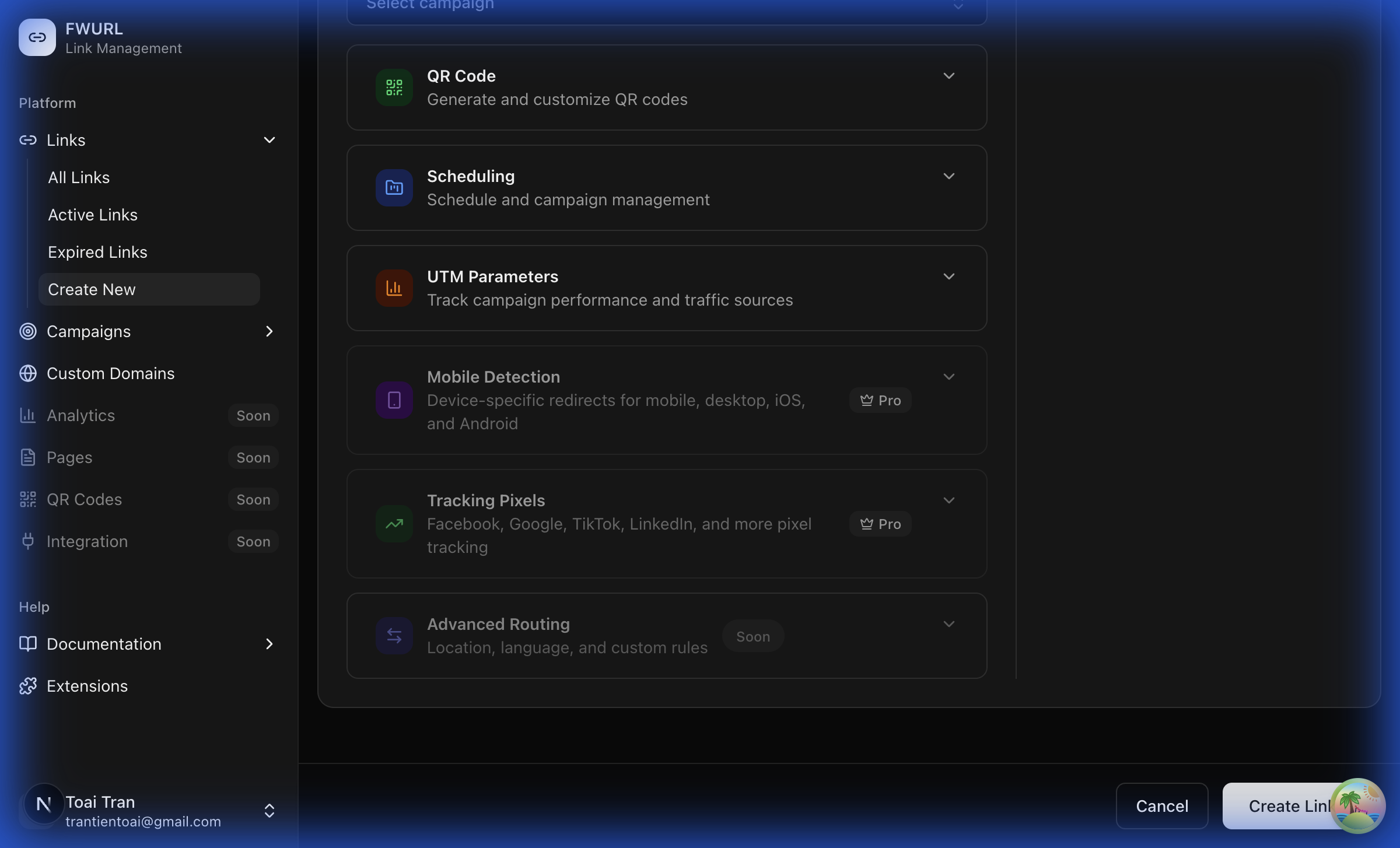
Available Features:
QR Codes
Generate QR codes for your short links with customizable styling.
Link Scheduling
Set activation and expiration dates for time-sensitive links.
UTM Parameters
Add UTM tracking parameters for Google Analytics campaign tracking.
Advanced Targeting
Redirect users based on device type, location, and other criteria.
Pro Features: Some advanced features like Mobile Detection and Tracking Pixels require a Pro plan. View pricing →
Creating Your Link
Once you've configured your link settings:
- Review your configuration
- Click Create Link at the bottom
- Your link is created instantly!
- Copy the short link or access additional options
After Creation
After creating a link, you can:
- Copy the short link to clipboard
- View QR Code and download it
- Edit the link configuration
- View Analytics to track performance
- Share directly to social media
Learn more about Managing Links →
Common Use Cases
Marketing Campaign Link
- Use Advanced Create
- Set custom alias:
summer-sale-2024 - Add tags:
marketing,summer,sale - Assign to campaign:
Summer Sale 2024 - Configure additional features as needed
Social Media Link
- Use Quick Create
- Paste blog post URL
- Let FWURL auto-generate alias
- Share immediately
Event Registration Link
- Use Advanced Create
- Set custom alias:
webinar-signup - Add relevant tags
- Assign to campaign
- Configure scheduling and tracking as needed
Alternative Creation Methods
Bulk Link Creation
Need to create many links at once? FWURL supports bulk import:
- Prepare a CSV file with your URLs
- Go to Links → Bulk Import
- Upload your CSV
- Map columns to FWURL fields
- Review and confirm
- All links created instantly!
Learn more about Bulk Operations →
Browser Extension
Create links even faster with the FWURL browser extension:
- Right-click any link → Shorten with FWURL
- One-click shortening from any page
- Automatic clipboard copy
- Available for Chrome, Firefox, and Edge
API Creation
Developers can create links programmatically via the FWURL API:
curl -X POST https://api.fwurl.com/v1/links \
  -H "Authorization: Bearer YOUR_API_KEY" \
  -H "Content-Type: application/json" \
  -d '{
    "url": "https://example.com/very-long-url",
    "alias": "my-link",
    "tags": ["api", "automated"]
}'Tips for Effective Link Creation
Naming Conventions
- Use descriptive aliases that reflect content
- Include dates for time-sensitive links
- Use consistent formatting across campaigns
Organization
- Tag links immediately upon creation
- Assign to campaigns for better tracking
- Use meaningful titles for dashboard clarity
Testing
- Test your short link before sharing
- Verify all redirects work correctly
- Check mobile and desktop experiences
Next Steps
Now that you know how to create links, explore these related topics:
Link Configuration
Learn about advanced link settings like password protection and expiration.
QR Codes
Generate and customize QR codes for your short links.
UTM Parameters
Master campaign tracking with UTM parameters.
Managing Links
Edit, archive, and organize your existing links.
Questions? Contact support or check our FAQ.